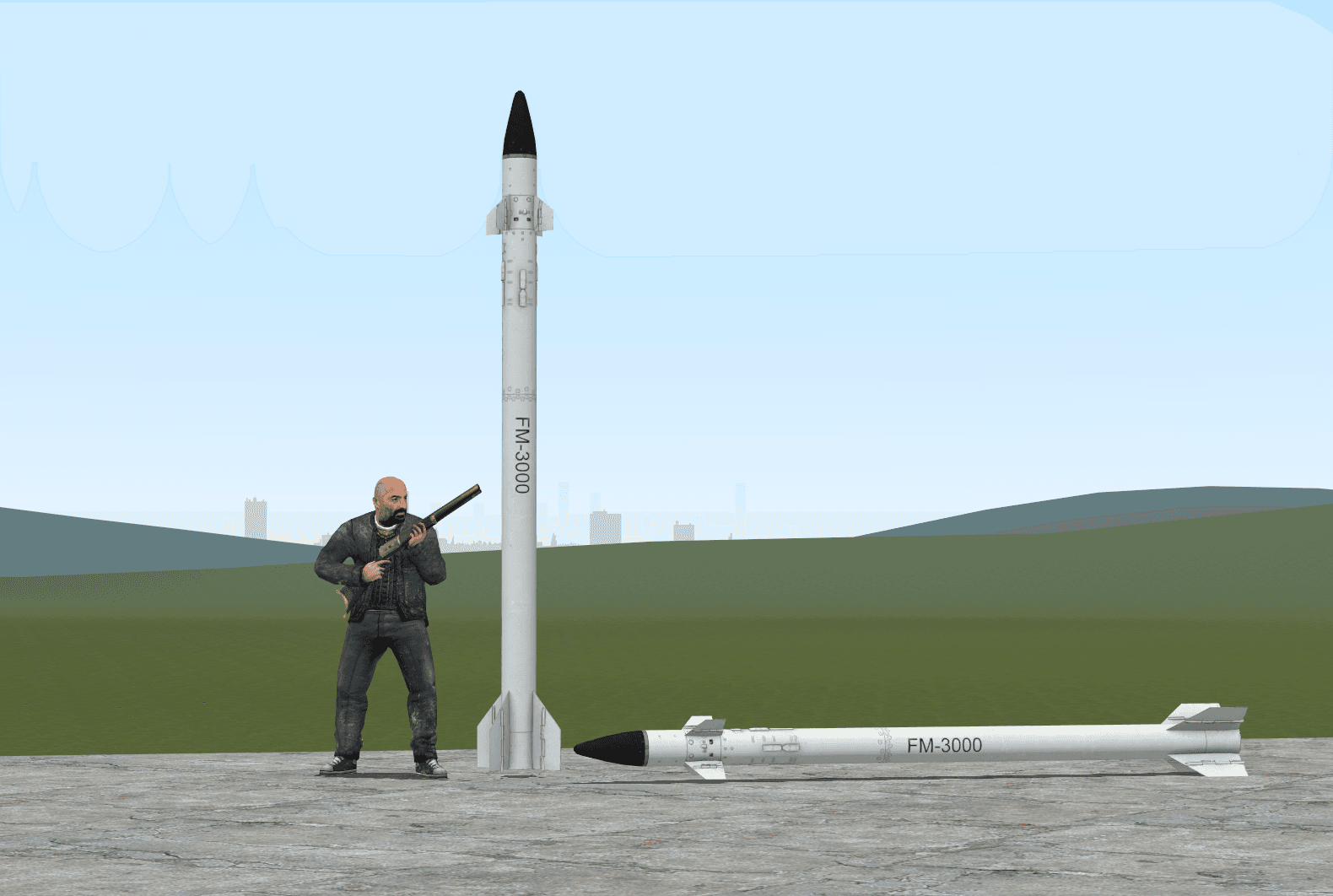
The tools you need
Crowbar : Unpack, Decompile, Compile, View
VTFEdit : Convert textures
Blender & Blender Source Tool : Convert model to smd
Gmpublisher : publish to workshop if you need
(all include official download link)
1. Blender you need install blender source tool
follow it to install
install at here
you can find them when install successful
2. Model you need a model of course
Unzip it to a folder for works
(1)model
import it to blender
Adjust object's heading like this
Tail heading to Y axis
Scale the model and Edit the model as you want
Don't forget Shade Smooth
Scale to 39.37 (1000mm = 39.37...inch)
Check the Face Orientation.
This is what should it looks like.
If outside is red, that mean you need to invert it.
this is wrong.
Follow this to fix.
the last thing is change model's name to connect textures.
It should be like this
(2)Physical model physical model, or Hitbox
model won't collide to anything without it.
as for the missile, we don't need some complication hitbox.
So a Cylinder would do.
nothing hard, just make sure it has a single collection
Now the most work of model has done.
3. Export and Others
(1)export
first let's export the model
just don't forget to select "SMD"
then you can see them
(2)Others Now create a folder of idle.
Then copy your model smd into it and rename it to "idle"
After that, create a TXT file and copy this into it.
(just a txt, not code)
// Created by Crowbar 0.74
$modelname "missiles\name.mdl"
$bodygroup "Body"
{
studio "name.smd"
}
$surfaceprop "canister"
$contents "solid"
$illumposition -0.045 1.954 -0.077
$cdmaterials "models\missiles\"
$attachment "exhaust" "root" 0.00 65.00 0.00 rotate -0 -180 0
$cbox 0 0 0 0 0 0
$bbox -50 -6 -6 50 6 6
$definebone "root" "" 0 0 0 0 0 0 0 0 0 0 0 0
$sequence "idle" {
"name_anims\idle.smd"
fadein 0.2
fadeout 0.2
fps 30
}
$collisionmodel "name_physics.smd"
{
$mass 40
$inertia 0
$damping 0
$rotdamping 0
$rootbone " "
$concave
$maxconvexpieces 90
}
You can edit the path or something by yourself,
And replace "name" as you want.
Rename it to your model's name with ".qc"
We will talk about others setting in QC later.
4. Crowbar
It's time to compile it
Crowbar setup like this
Then select "compile" and like this
Crowbar will tell you if there is any error, if everything good it will like this
Then you could find them
That is not the last
Select "view" and import your model.
Check the Physics and Attachment.
This is a missile model, so it require correct position for Motor effect
The direction should like this, yellow axis to front.
Change the values in "Translation" to adjust it, then it will output a string of QC file.
Replace that attachment string.
and also you can measure model's Size and change bbox string.
this is bbox
Save it and Compile again.
Warning: If you are re-compile a model that was Decompile from GMOD's mdl.
That will make your physics and attachment to wrong position and direction.
You need to check it in "View" and adjust it until everything is correct.
Now the model's part is done, Let's deal with textures.
5. VTFEdit
ah, it's simple
These
Import them to VTFEdit.
Use Default setting.
Then, SAVE AS
Setting
Then you will get this.
Just make sure the texture path is correct.
Now you should have these files.
6. Pack up
Create a folder in Addons.
When you finish this, if everything is right,
You should able to see textures in Model Viewer
Then let's put models in.
Time to check our works.
That is it.
Discussion (0)
Join the conversation to ask questions or share your thoughts.